Turn Chat History into a Personal Knowledge Base: Export, Clean-Up, and Retrieval in Practice

Who This Is For — and the Boundary Up Front
This approach suits people with a lot of chat history who want to keep useful material for the long term: product managers collecting user feedback, creators recovering ideas, and students or researchers archiving discussions. The core is not an export button but a pipeline — keep, tidy, import, retrieve: WeChat's official tools keep the records, manual tidying extracts the value, and Notion stores it and makes it searchable.
Set expectations first: WeChat chat history lives on the phone and does not follow you automatically when you switch devices. The official options are migration to a new phone and backup to a computer — there is no way to export history as text or spreadsheet files. Once you accept that boundary, the steps that follow make sense.
What You Need
A phone with WeChat, a computer with WeChat for Windows or Mac, the same Wi-Fi network for both, and a Notion account (sign in with an existing account; this guide does not cover sign-up). Prepare a local folder named by source, date, and topic — for example, “WeChat — 2026-11 — user feedback” — to hold the tidied documents.
Filter before you start: keep only conversations worth preserving. Read through the important text, images, and files in the target conversations and note each item's topic and date. Anything involving other people's privacy, verification codes, or payment information is excluded and never enters the knowledge base.
Step by Step: From Keeping Records to Searching Them
Start by keeping the records, using either phone-to-phone migration or a computer backup. To migrate, open WeChat on the old phone and go to Me > Settings > General > Chat History Migration & Backup > Migration > Migrate to another mobile phone or tablet, pick the conversations to move, and follow the prompts on the new phone; both devices must be on the same network. To back up to a computer, install WeChat for desktop, connect the phone and computer to the same Wi-Fi, and in the desktop app open the menu at the bottom left, then Backup & Restore > Back Up Chat History to PC, and confirm on the phone. To restore, use the same menu; the restore merges with the records already on the phone and does not delete them.
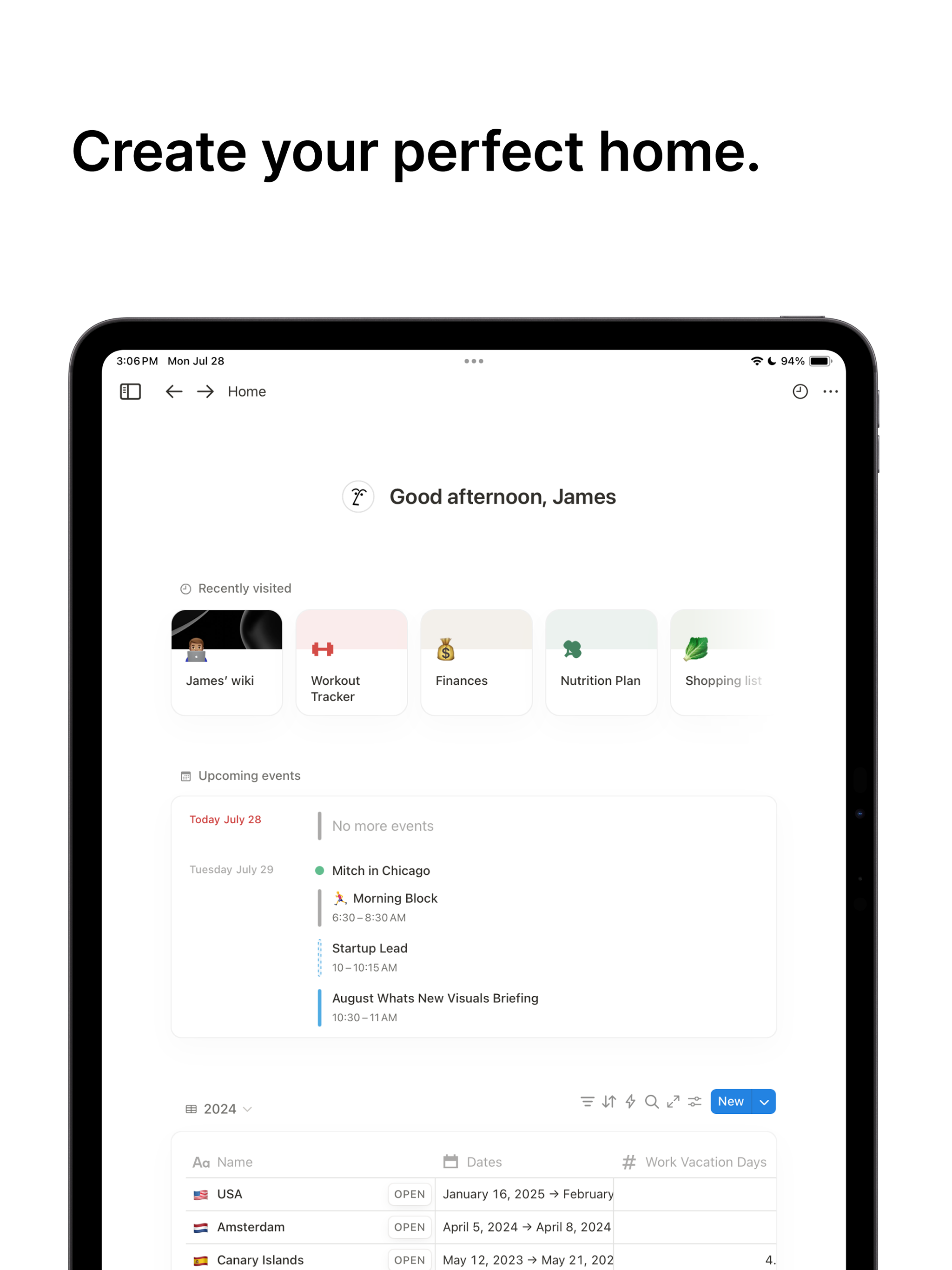
Then tidy the material into documents by hand. Sort the useful conversations by topic into Markdown (.md) or Word (.docx) files, keeping three fields per item: a summary, the date, and the source; save images and files separately under their original names and note only the file name in the document. Next, import into Notion. Open Notion on desktop or the web (import is not available on mobile yet), go to Settings > Import in the sidebar, or type “/” on any page and search for the importer you need, then choose Text & Markdown or Word and upload the files. The free plan allows 5 MB per file and paid plans 50 MB, so split oversized files first; you can track progress under Settings > Import.
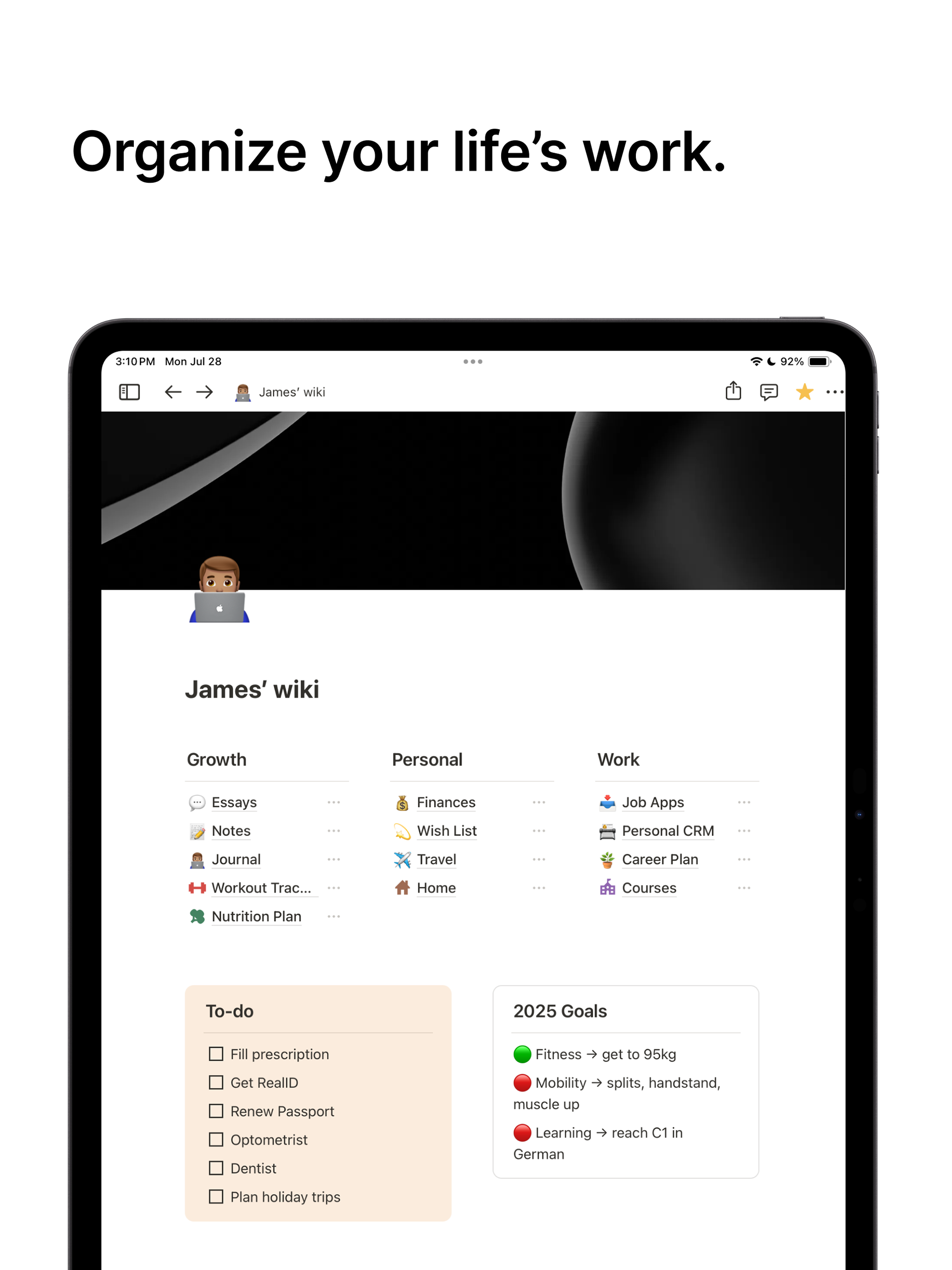
Finally, build a searchable structure. File the imported pages into a database by topic and add three properties to every record: source, date, and topic. Spend 20 minutes each week reviewing: merge duplicates and tag outdated items as expired. The knowledge base then stops being a pile of documents and becomes a collection you can filter by topic and date.
Common Sticking Points and Fixes
Sticking point 1: you cannot find the backed-up files on the computer. A desktop backup lives only on the computer and can only be restored to the phone inside WeChat for desktop; it cannot be opened as a file. Getting the content into a knowledge base has to go through the manual tidying step — there is no shortcut. Sticking point 2: formatting breaks after import into Notion. Complex tables and formatting may not survive the import, so split merged cells and remove fancy styling in the source document first; if an import fails, split the file and import it in smaller batches.
Sticking point 3: there is too much history to know where to begin. Do not try to import everything at once. Start with about 20 clearly useful items from the most recent month, run the full process once, and then work backwards month by month. Sticking point 4: imported pages cannot be found by search. Check whether the page landed in the Private section instead of the topic database, and whether the topic and date properties were filled in.
Things to Watch Out For
Use official channels only: WeChat migration and backup and Notion import are all official features. Do not install “chat history exporter” tools from unknown sources — they may steal your account and private data. Mind privacy while tidying: keep only your own material and public discussions. Private messages from others, photos of identity documents, and payment records never go into the knowledge base, and content from group chats should only be quoted with the other person's agreement.
Recheck regularly: menu locations in WeChat and Notion change with new versions, so follow the menus actually shown in the app. The steps in this article were checked against official pages on 2026-11-15; if platform rules change, the official guidance applies.
Tools mentioned

Sources
This article is compiled from the public sources above and does not reproduce the originals in full; see the official sources for details.