VEED Deep Dive: Edit Video in the Browser, with Auto Subtitles, Translation, and Editing in One Flow
Positioning and maker
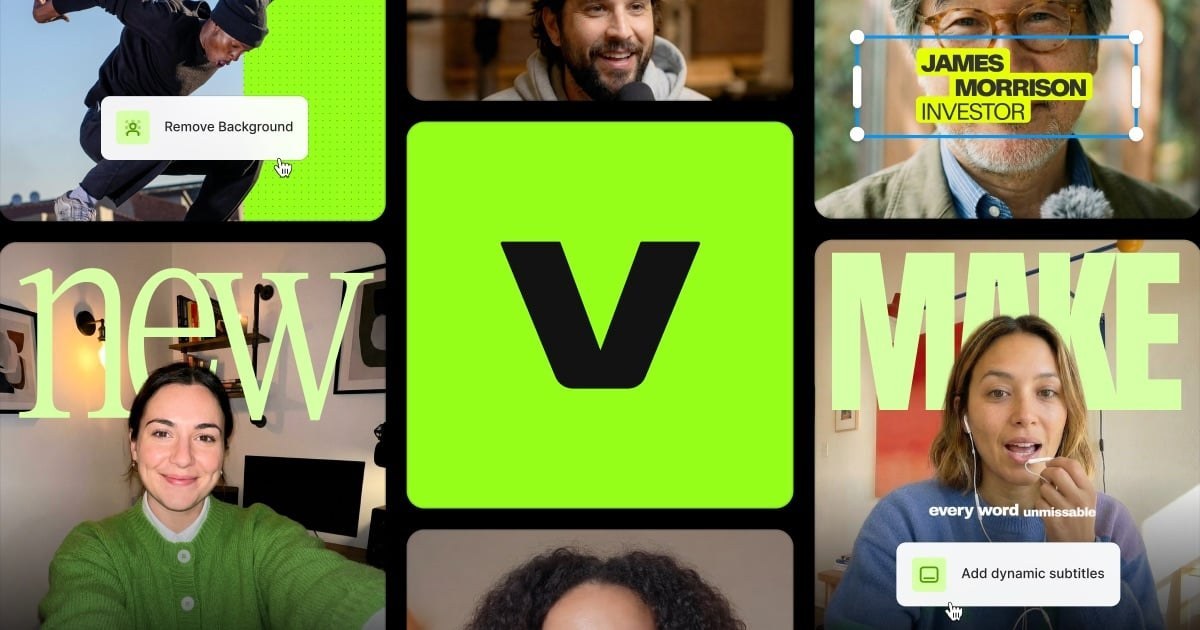
VEED is an online video editing tool that runs in the browser. There is nothing to install: open the web page, upload a video, and start editing. It brings the timeline operations of traditional editing software to the web, with a layer of AI on top, and automatic subtitles are its most representative feature.
As of 2026-11-23, the Lumo library lists 2,287 tools, including 128 in the video category, and VEED stands out among them for combining editing and subtitles in one flow. Its aim is not to replace professional editing software, but to make cutting a video that is ready to publish as short and smooth as possible.
Core features
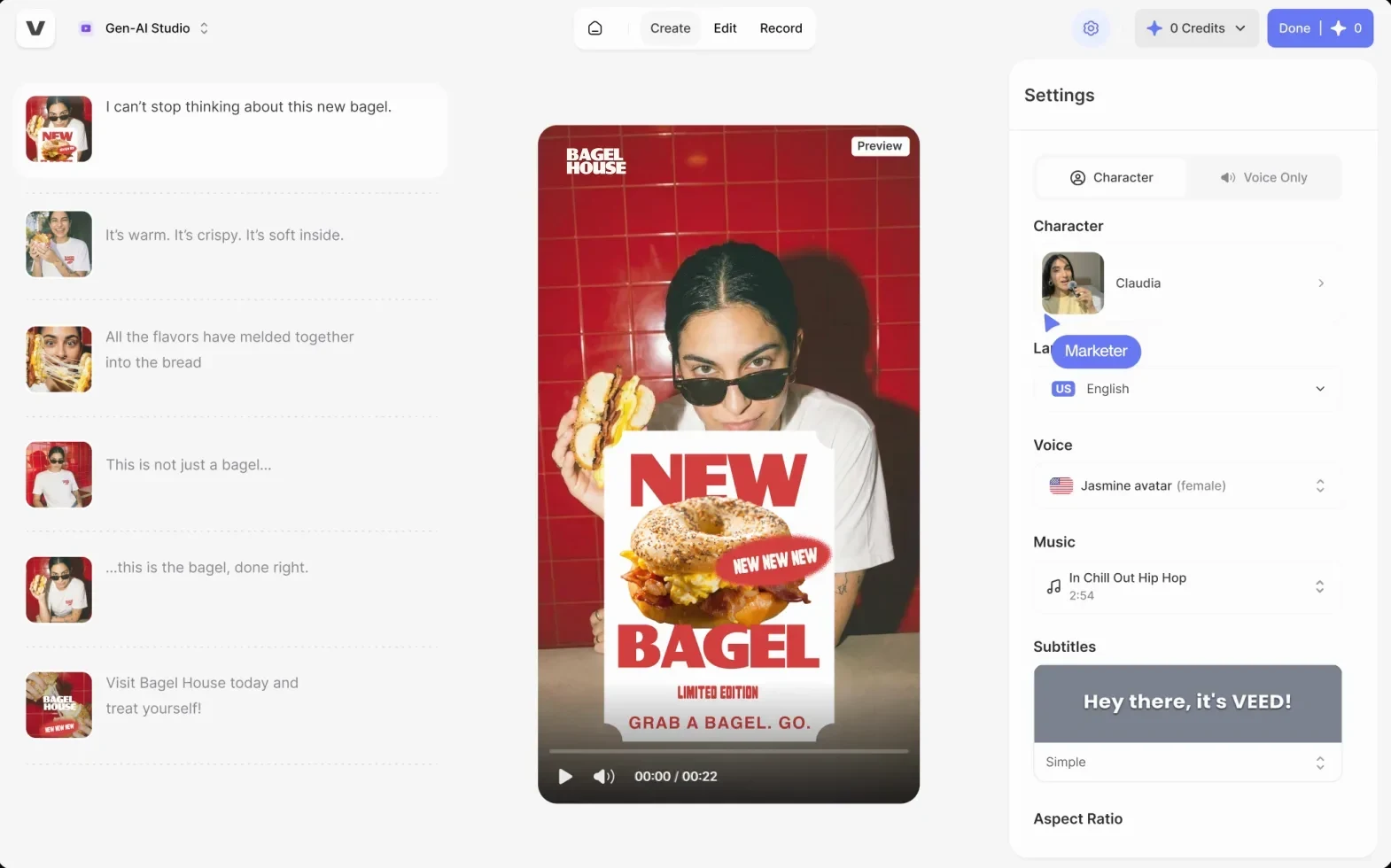
At its core is a complete workflow from editing to subtitles: timeline editing supports trimming, splicing, and speed changes, so a rough cut can be done in the browser. After upload, speech is recognized automatically and turned into a subtitle track; fixing a few typos is enough to burn the subtitles into the picture, or the subtitle file can be exported for separate use. Subtitles also support translation, which suits bilingual videos.
Beyond editing and subtitles, it also offers screen and camera recording, text-to-speech voiceover, and background music plus a stock library. The pieces a light finished video needs are mostly there, so there is no need to hunt for voiceover and music elsewhere.

How it compares with similar tools
Compared with professional editing software, VEED makes a clear trade-off: it does not compete on track counts or color-grading depth, but on how smoothly you can go from opening it to publishing. Subtitles are the dividing line — many tools treat subtitles as an add-on, while VEED turns recognition, typo fixes, translation, and burn-in into one flow, removing the need to transcribe line by line.
Compared with single-purpose subtitle tools, it adds a full set of editing and voiceover features, so one video does not have to move back and forth between several tools. For people who publish on a steady weekly rhythm, one fewer import and export means one fewer chance for errors and waiting.

Who it suits and typical scenarios
People who need subtitles will benefit right away: bilingual video creators, teachers adding subtitles to course videos, and marketers cutting product demos can all skip the transcription step that used to take the most time — fixing typos is much quicker than typing out every line by ear.
It also suits light users who want quick results: people who do not want to learn professional editing software and need to publish a few short videos, event clips, or product demos each week can trim in the browser, add subtitles, and export. People who need fine color grading, multi-track compositing, or cinema-grade editing are outside its target range.
Access and pricing
VEED needs no download or installation — open the official site and start. Access from China and exact pricing should be confirmed on the official site before use. Tiers and limits can change over time, so what you see when you open the site is what counts.
The Lumo library lists it as freemium: the free tier comes with limits, while the paid tier unlocks HD export and the full AI features. A good way to try it is to run one full pass on the free tier — upload, edit, add subtitles, export — and only consider the paid tier after confirming it meets your needs.
Tools mentioned
Sources
This article is compiled from the public sources above and does not reproduce the originals in full; see the official sources for details.