Short-Video Production Pipeline: Connecting Script, Visuals, Voiceover, and Editing Tools into a Batch Workflow
1. Conclusion First: Assign Each of the Four Stages to Its Dedicated Tool
Here is the core conclusion: short-video production is divided into four stages—script, visuals, voiceover, and editing. Use a chat assistant (Doubao, Kimi, or ChatGPT, whichever you find easiest to use) to draft the script; generate visuals with Jimeng or Kling; produce voiceovers with ElevenLabs or CapCut text-to-speech; complete editing in CapCut; and finally use OpusClip to batch-clip long videos into short videos.
The purpose of a pipeline is to standardize the repetitive parts of each stage: lock in one set each of script templates, visual styles, voiceover tones, and editing templates so that changing topics only changes the content, not the workflow.

2. What You Need to Prepare
Prepare five items: a chat assistant account for writing scripts; a visual generation tool (Jimeng or Kling, directly accessible domestically); a voiceover tool (ElevenLabs or CapCut); CapCut desktop (the primary workspace for editing and final assembly); and an OpusClip account (for batch clipping; the free plan includes 60 credits per month, and new users get a 7-day Pro trial with no credit card required).
Also confirm your video format. Talking-head videos rely primarily on script and voiceover, with visuals as support; compilation and commentary videos rely primarily on visual generation and editing, with voiceovers added later. Once the format is set, the effort allocation across the four stages is clear: do not spend the most time on secondary stages.

3. Step-by-Step Workflow
First, write the script. Give the chat assistant the topic, target audience, duration, and tone all at once, and have it generate a first draft following a "hook, point, example, closing" structure. Read through the draft, revise sentences that sound heavily AI-generated, and finalize it. Once finalized, split it into a verbatim script and a storyboard list: map each line of dialogue to its corresponding visual in a single table, and execute the remaining three stages according to that table.
Second, create the visuals. Following the storyboard list, generate visuals segment by segment using Jimeng or Kling: Chinese prompts generate clips directly. Lock in one style preset first (such as flat illustration or realistic live-action look) and reuse the exact same style keywords across the same batch of videos so the visuals look cohesive. Review all generated visuals afterward: move usable clips into editing and delete unusable ones immediately.
Third, produce the voiceover. For talking-head or narration videos, use ElevenLabs to convert the script into speech: text-to-speech and multilingual voiceovers are its core capabilities, while voice cloning works well for keeping a consistent host voice long-term. If you prefer convenience, use CapCut text-to-speech: it supports popular voices or voice cloning to read text aloud, completing the voiceover directly inside the editing software. Listen through the audio before moving to editing.
Fourth, assemble the final cut in editing. Import the visuals and voiceover into CapCut according to the storyboard table: use smart talking-head editing to cut filler words and verbal slips against the text transcript, use smart narration rough-cut to generate an initial assembly, and then refine transitions and captions. Digital humans work well for talking-head videos without appearing on camera, AI music provides background tracks, and marketing video templates suit batch promotional clips.
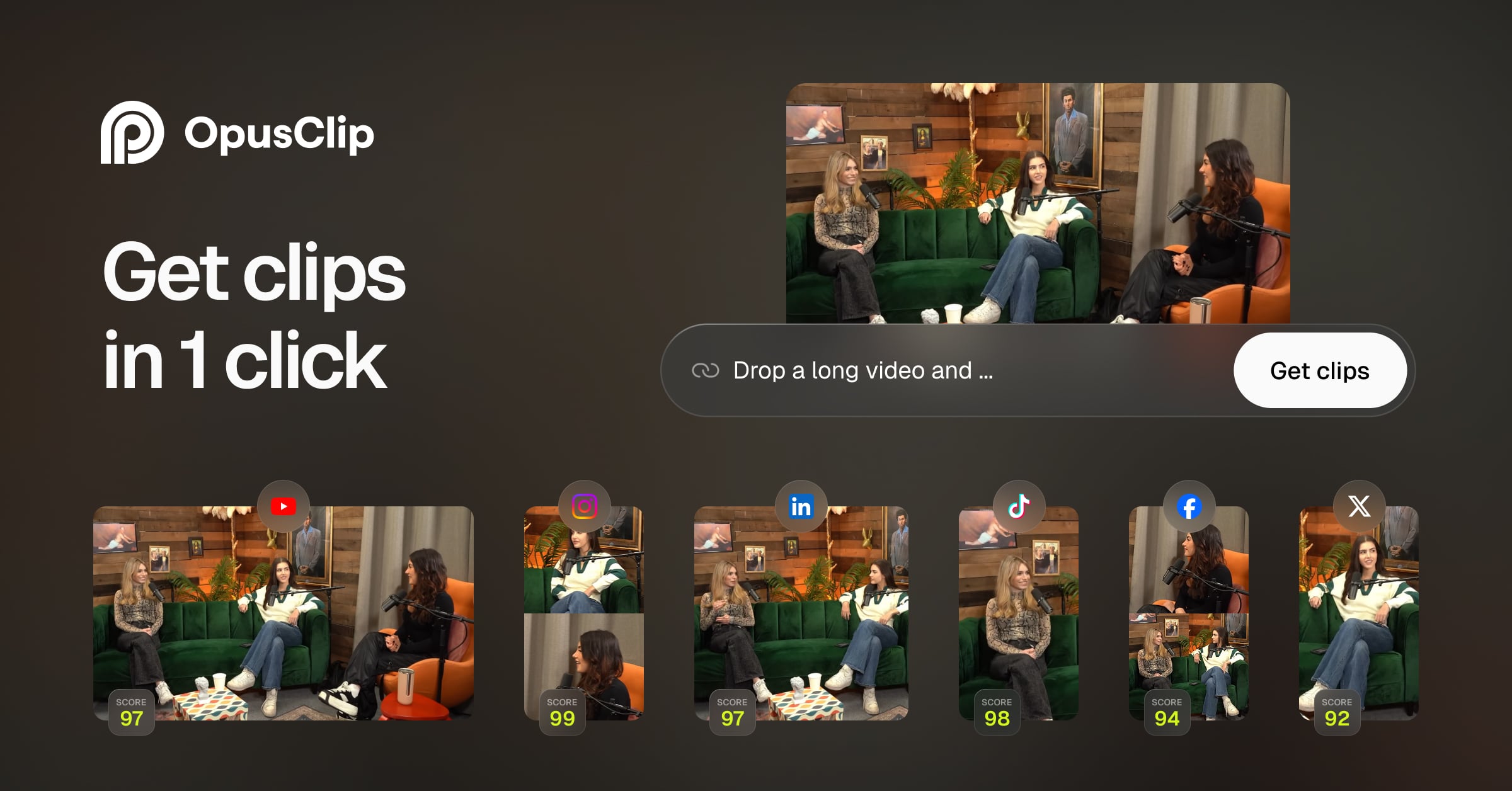
Finally, run batch clipping. When you have a long video (interviews, livestream replays, or long talking-head recordings), use OpusClip's ClipAnything to slice it into short clips in one click: official documentation states it handles podcasts, interviews, vlogs, sports, commentary, and more. Generated clips come with dynamic captions automatically, and you can use ReframeAnything to resize them into vertical formats for different platforms. Recording once and distributing multiple clips is the most efficient step for batch output.
4. Common Bottlenecks and Solutions
Inconsistent visual styles: lock in one set of style keywords and include them in every prompt rather than changing phrasing per segment; style keywords should cover three elements—visual medium, color tone, and camera feel. Voiceover and visuals out of sync: finalize the script before generating visuals; when voiceover pacing does not match clip duration, adjusting speech speed is faster than re-cutting visuals.
Inaccurate clips from OpusClip: check whether the source video has clear thematic segments—a long video without distinct points will yield flat clips; mark 3–5 highlight moments in the source video before clipping. Running out of free credits: OpusClip's free plan provides 60 credits per month, so test-clip on a small scale and verify output quality before batch processing.
5. Important Notes
Three reminders. First, copyright boundaries: do not directly replicate someone else's finished video style or assets during visual generation, and do not clone a real person's voice to impersonate them; confirm each tool's licensing scope before commercial use. Second, quality starts with the script: a pipeline scales output volume, not ideas. Third, regions and network availability are stated strictly as facts: refer to each product's official website list for supported regions.
The steps in this article were verified against official pages on 2026-11-10; subject to official updates if platform rules change.
Tools mentioned



Sources
This article is compiled from the public sources above and does not reproduce the originals in full; see the official sources for details.