Serving Local Models as an API: Connecting Ollama Models to Your Own App
The Short Answer: Who This Is For
The short answer: if you can send an HTTP request, you can connect Ollama to your own app. It suits local assistants, offline utilities, and prototypes for privacy-sensitive scenarios. The API is a standard HTTP interface, so other languages can call it directly.
What You Need
Prepare a macOS, Linux, or Windows computer with disk space for model files, and check whether its GPU and memory are sufficient against the official GPU page before pulling a model. For requests, curl in the terminal is enough; for your app, use the HTTP library of the language you know.
Pick a small model to practice with first, such as llama3.2, which the official API documentation uses in its examples. Model names follow the model:tag format, and the tag defaults to latest when omitted. Model files are large, so downloading needs a stable connection and some patience.
Step by Step
Step one: install. Open ollama.com/download and follow the instructions for your system: on macOS or Linux, run curl -fsSL https://ollama.com/install.sh | sh in the terminal; on Windows, run irm https://ollama.com/install.ps1 | iex in PowerShell. After installing, run ollama --version to verify.
Step two: pull a model and try it. Run ollama pull llama3.2 to download the model, then ollama run llama3.2 to start a chat; type a sentence to confirm the model answers normally. The Ollama service runs on your own machine by default, at http://localhost:11434.
Step three: call it over HTTP. Following the official API documentation, send a POST request to http://localhost:11434/api/generate with the model name and prompt in the body, for example curl http://localhost:11434/api/generate -d '{"model": "llama3.2", "prompt": "Why is the sky blue?", "stream": false}'. Setting stream to false returns the full result in one response, which is the easiest way to get started; by default it streams back multiple JSON objects.
Step four: connect it to your own app. Send the same HTTP call in your language and take the response field from the reply to show the user. For multi-turn conversations, use the /api/chat endpoint with a messages array as described in the official documentation; to get a fixed output format, add the format parameter so the model returns JSON.
Common Problems and Fixes
Problem one: curl cannot connect to port 11434. First confirm the Ollama service is running: ollama list showing your downloaded models means the service is up. If you have just installed it and never started it, run ollama run with any model once, then retry.
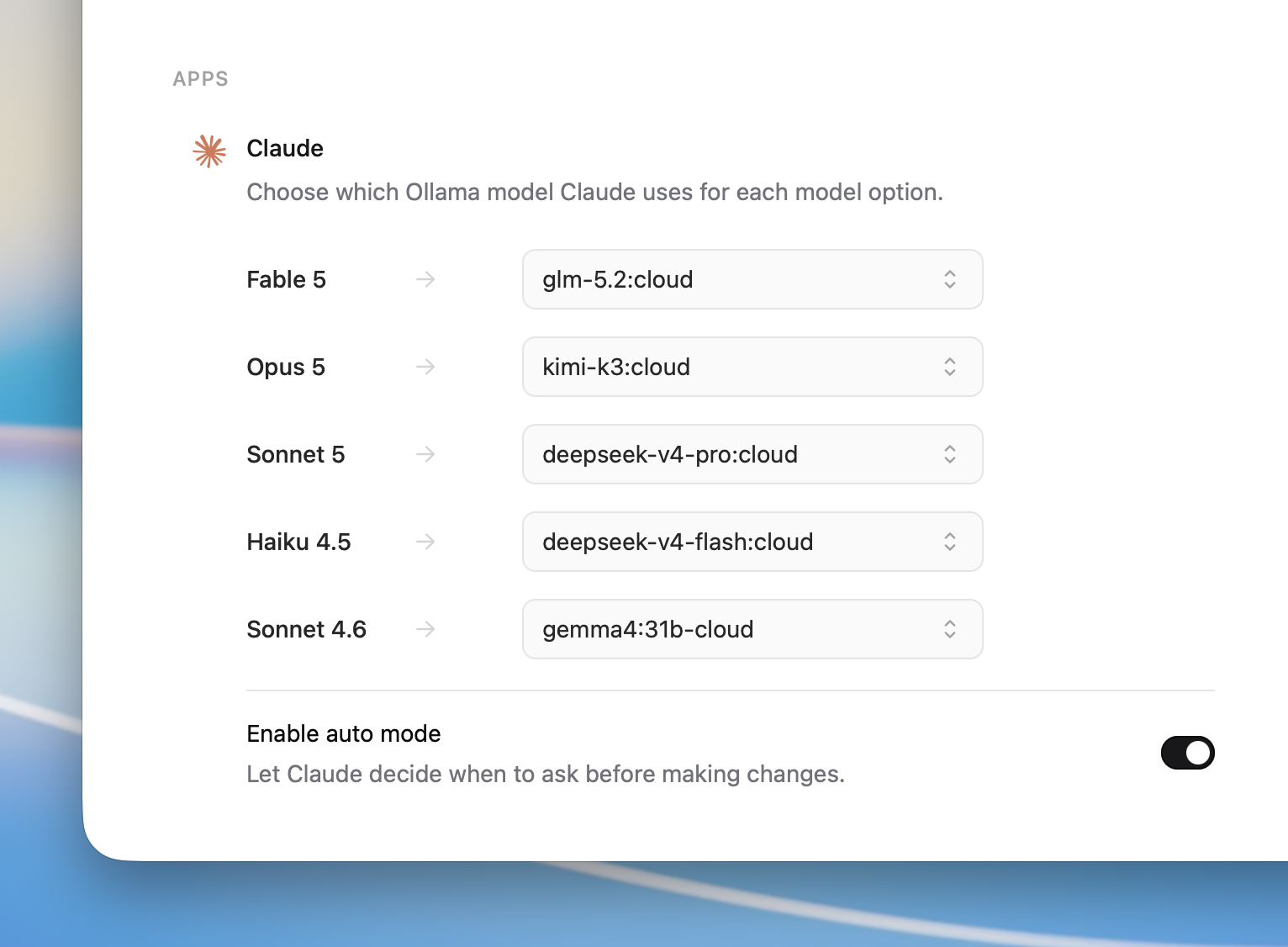
Problem two: the model answers very slowly or stalls. Large models demand a lot of memory and GPU, so switch to a smaller model to verify the flow first. Large models are slow on computers without a strong GPU; if needed, use a cloud model whose name ends in :cloud. Problem three: the response comes back as several JSON objects. The generate endpoint streams by default; set stream to false in the request to get a single complete JSON object.
Things to Watch
Data sent to a local call stays on your machine. The default configuration only listens on your own machine; if you need other devices on your local network to reach it, read the official documentation on environment variables, and do not expose the port to the public internet. Cloud models are called through ollama.com and require signing in or creating a key; keep keys in your own environment, never in a code repository.
The steps in this article were checked against the official pages on 2026-11-18. If platform rules change, the official pages apply.
Tools mentioned
Sources
This article is compiled from the public sources above and does not reproduce the originals in full; see the official sources for details.