Choosing and Setting Up a Local Vector Database: A Hands-On Chroma vs Qdrant Comparison
1. The conclusion first: Chroma for prototypes, Qdrant for services
Conclusion first: to validate a retrieval idea quickly, Chroma's in-memory client is the easiest path — a few lines of code after pip install chromadb is enough. For long-running use, sharing across several applications, or filtering by metadata, use Qdrant's Docker service. Both are open source: Chroma under the Apache 2.0 license, and Qdrant an open-source vector search engine written in Rust.

2. What you need
Python and Docker installed locally — the Qdrant side needs Docker installed and running. Prepare a small batch of test text, such as a dozen product descriptions or document excerpts, to verify writes and queries. Decide where embeddings come from in advance: Chroma handles tokenization, embedding, and indexing automatically, and also accepts your own vectors. Qdrant's quickstart example uses 4-dimensional example vectors; in real use the vector size must match your embedding model's output dimension — do not copy the example's 4.
3. Step by step: run a minimal loop on each side
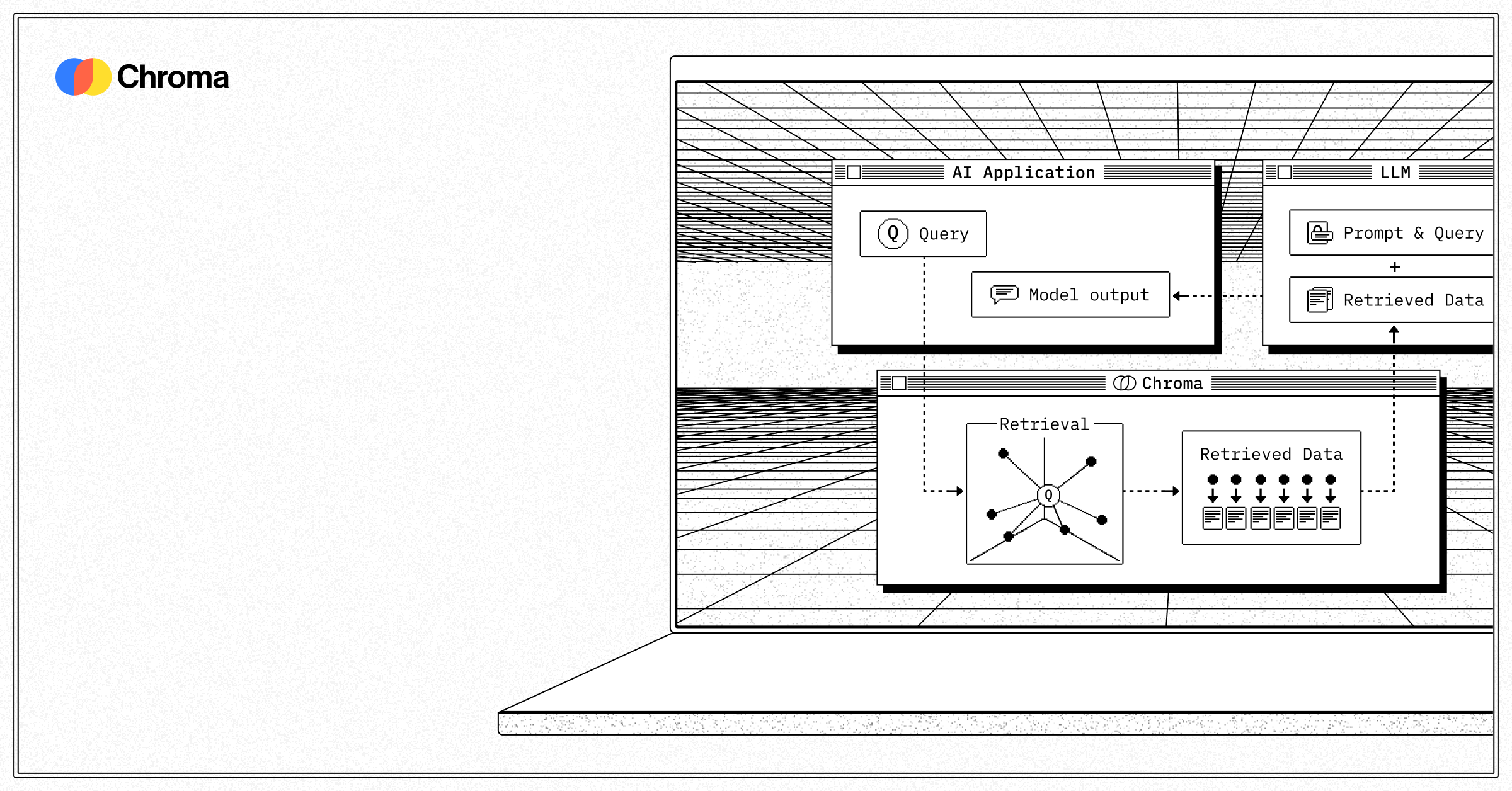
Start with Chroma. Run pip install chromadb to install the Python client. In code, create an in-memory client with chromadb.Client(), then create a collection with create_collection, for example all-my-documents. Call collection.add with documents, metadata, and unique ids. Finally, call collection.query with the query text and n_results=2 and confirm the two most similar results come back. Data in the in-memory client is lost when the program ends; switch to the persistent client or client-server mode when you need persistence.
Then Qdrant. Pull the image with docker pull qdrant/qdrant, then start the service with docker run -p 6333:6333 -p 6334:6334 -v "$(pwd)/qdrant_storage:/qdrant/storage:z" qdrant/qdrant; data is stored in ./qdrant_storage by default. Once it is up, open localhost:6333/dashboard to confirm the web dashboard loads. The REST API listens on port 6333 and gRPC on port 6334.
Next, create a collection and run writes and a query in Qdrant. Connect with the Python client QdrantClient(url="http://localhost:6333"), create a test_collection with create_collection, specifying the vector size and distance metric — the official example uses size=4 with DOT. Use upsert to write points with payloads. Then call query_points with a query vector and limit=3 and confirm the results come back ordered from most to least similar.
4. Common blockers and fixes
Mismatched vector dimensions are the most common source of errors. The size set when creating a collection must match the length of the vectors you write, and must also match the embedding model's output dimension. The official example's size=4 is only a 4-dimensional demo vector; switching to a real embedding model means changing it to that model's actual output size.
Service fails to start or data is lost: on the Qdrant side, first confirm Docker is running and ports 6333 and 6334 are free — a wrong -v mount path in the start command means data never reaches disk. On the Chroma side, data disappearing when the program exits is the design of in-memory mode; switch to the persistent client or the chroma run --path server mode to keep it.
5. Things to watch
Verify writes on a small dataset before bulk import. Qdrant's payload filtering and Chroma's metadata filtering use different syntax, so query code must be rewritten when switching libraries. Chroma is not yet listed on this site, while Qdrant is; pricing follows each project's official site.
Verification note
The steps in this article were checked against official pages on 2026-11-17. If platform rules change, the official pages apply.
Tools mentioned
Sources
- Getting Started — Chroma
- chroma-core/chroma README — Chroma
- Local Quickstart — Qdrant
This article is compiled from the public sources above and does not reproduce the originals in full; see the official sources for details.