Advanced AI Image Generation: ComfyUI Node Workflows and Batch Generation, from Prompts to Workflows
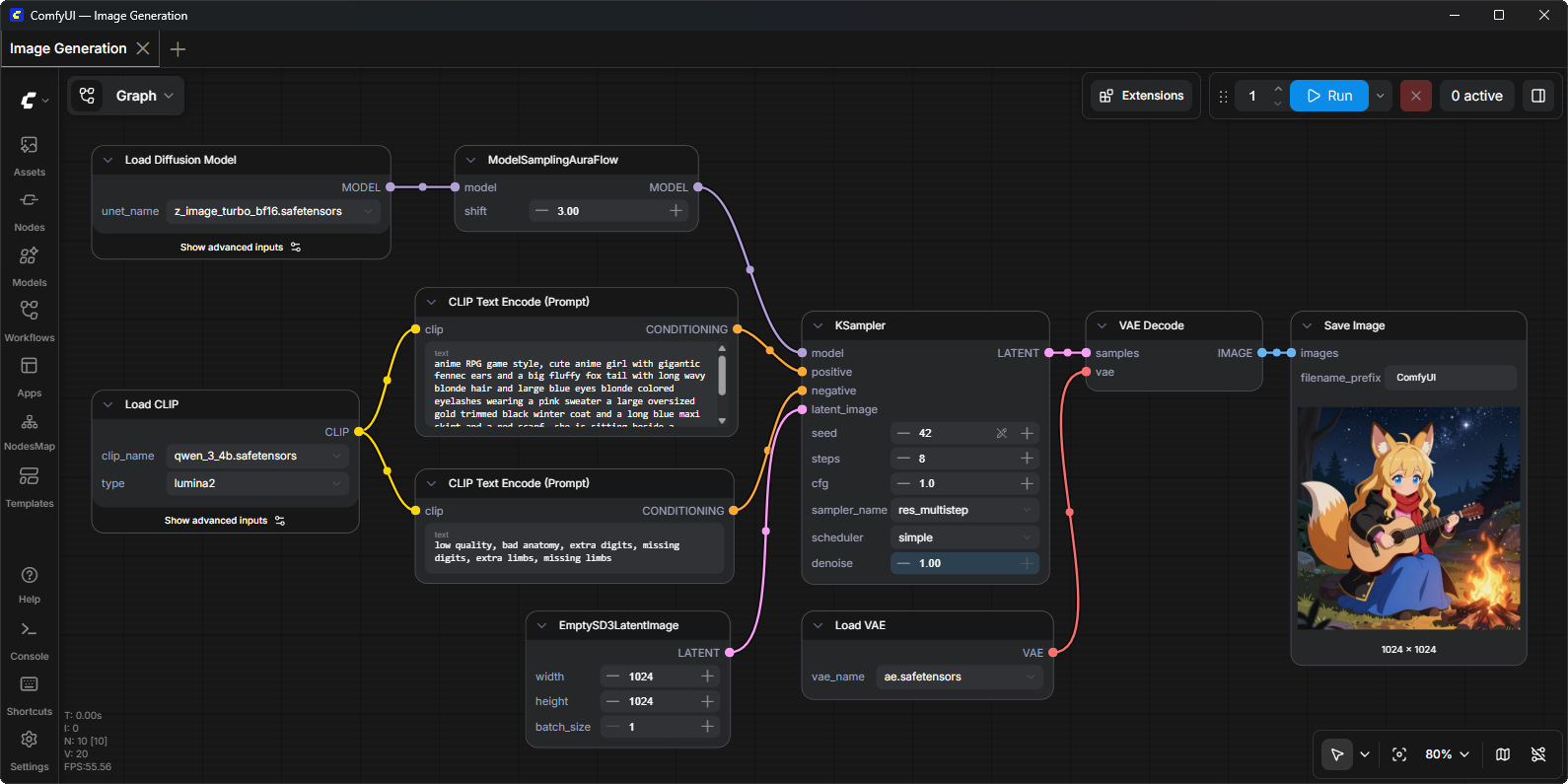
1. The takeaway: the node graph is the heart of ComfyUI
ComfyUI is an open-source, node-based AI creation tool (GPL-3.0), with its official site at comfy.org and its code on GitHub at Comfy-Org/ComfyUI. It breaks image generation into a node graph: load a model, write prompts, sample, decode, save — each step is a node on the canvas and the wires define the execution order, so every step is visible and inspectable.
It does more than images, supporting video, audio, 3D, and text generation, and the core can run fully offline locally. Its value is reuse: change one node and rerun the same graph, save a workflow as JSON, and anyone who receives it can reproduce the result exactly.

2. What you need before starting
Check VRAM first. The official README notes that, thanks to asynchronous weight streaming, large models can run on a machine with 4GB of VRAM plus 8GB of RAM, but batch generation and high-resolution output call for more headroom.
There are four install routes: the desktop app is the simplest, available for Windows and macOS from comfy.org; the Windows portable build extracts and runs; comfy-cli installs from the command line — run pip install comfy-cli, then comfy install; manual installation supports Windows, Linux, and NVIDIA, AMD, Intel, and Apple Silicon GPUs. Put model files in their matching subfolders: checkpoints go in models/checkpoints, and LoRA, ControlNet, and VAE files each have their own folders — a file in the wrong folder will not show up in the node menus.
3. Building node combinations: a text-to-image workflow
A basic text-to-image workflow has five steps: load the checkpoint; write the positive and negative prompts; sample with KSampler (steps, CFG, seed, and sampler settings all live here); decode the latent image into pixels; save the result to the output folder. Nodes connect by type: an output can only connect to a matching input, so check the port types before wiring.
A few shortcuts cover daily use: double-click the canvas to search for nodes; Ctrl+Enter queues the current graph; Ctrl+Shift+Enter queues it first; Ctrl+Alt+Enter cancels the current generation; Ctrl+S saves the workflow. Changing parameters needs no rebuild: change the seed for a new image, the prompt for a new subject, or the checkpoint for a new style.
Advanced combinations add nodes to this graph: LoRA sits between the model and CLIP to add a style; a ControlNet node takes a reference image to control composition and pose; an Upscale node enlarges the output. Nodes you do not need can stay: Ctrl+B bypasses and Ctrl+M mutes them.
4. Batch generation: queue, seeds, and a parameter table
Batch generation rests on three things: the queue, seeds, and a parameter table. ComfyUI has a built-in asynchronous queue: after Ctrl+Enter adds a job, you can keep editing and queue more tasks; press Q to view the queue and H to view history. Keep the prompt and model fixed and change only the seed, and each run produces a different image; running one prompt across several seeds and picking afterwards is faster than editing the prompt one image at a time.
The parameter table is the discipline of batch work: record the prompt, seed, steps, CFG, sampler, and model name in a table, and change only one variable at a time so comparisons mean something. A workflow saved as JSON can be reused, and a complete workflow and seed can also be recovered from a generated image. Validate with a small batch first — four images, for example — and scale up once the result is right; organize the output folder into subfolders by prompt or date.
5. Common pitfalls and notes
The most common pitfall is putting a model in the wrong folder: checkpoints, LoRA, and VAE files each have their own subfolder, and a misplaced file will not appear in the node menus — check the official README first. If VRAM runs short, lower the resolution, shrink the batch, or switch to a smaller model; custom nodes install through ComfyUI-Manager, but confirm compatibility with the current core version first.
Pricing and licensing, stated once: ComfyUI itself is free and open source, the desktop app is a free download, and local generation carries no per-use cost; the official cloud service, Comfy Cloud, is paid and suits users without a local GPU. Respect the licenses of the models and assets you generate with, and check prompts for information you would rather not share before passing a workflow JSON to someone else.
The steps in this article were verified against the official pages on 2026-11-12; if platform rules change, the official pages apply.
Sources
This article is compiled from the public sources above and does not reproduce the originals in full; see the official sources for details.