AI-Assisted Podcast Episode Production: From Topic and Outline to Show Notes and Clip Distribution
1. The Bottom Line: Who This Is For and What You Get
This guide covers the full production chain for one episode: topic, outline, recording, editing, show notes, and clip distribution. The division of labor is clear: NotebookLM handles topic and outline, Descript handles recording and editing, and Castmagic handles show notes and clips. When you finish, you hold a finished audio file, a set of show notes, and short video clips ready to post.
It fits hosts who already run a show and spend too long on editing and show notes each episode, and newcomers about to launch who want the workflow smooth from the start. You do not need to be an editing expert: the heaviest manual work in this chain is handed to AI, and your job is to set direction, make calls, and check the result.
2. What to Prepare
Prepare three things: first, this episode's topic and guest material, organized into one document; second, recording gear and a quiet room — a phone plus earphones is enough to start, an external microphone if you have one; third, accounts for the three tools — Descript offers a free tier, Castmagic is a paid subscription, and NotebookLM signs in with a Google account.
Then build a show folder: transcripts of past episodes, listener messages, and your topic list all go in. NotebookLM accepts PDFs, web pages, YouTube videos, and audio files as notebook sources, so the point of this step is to ground your topic in real material instead of guessing.
3. Step by Step
Step one, topic and outline: put the folder's material into a NotebookLM notebook, ask it to compare against past episodes, find the gaps, and list three possible angles, then have it draft an outline for the angle you pick — opening, three key points, and a close. Save the outline as a note and follow it while recording so the conversation stays on track.
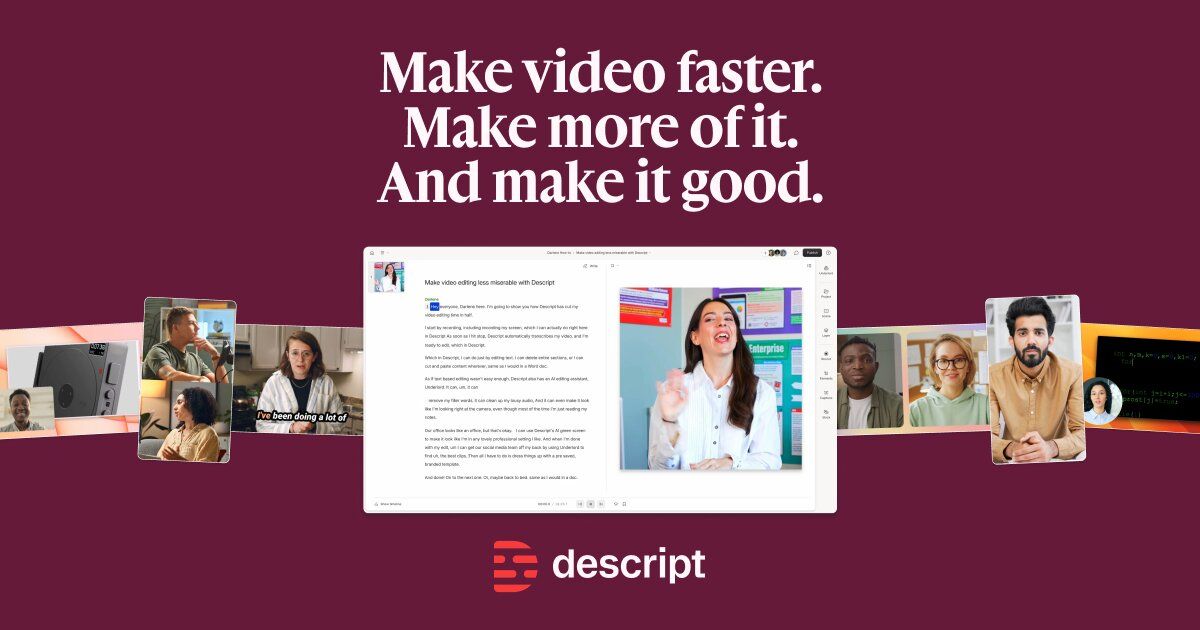
Step two, record and edit: record remote guests with Descript Rooms, or import a recording directly. Once the transcript is generated, edit by editing the text — cut filler words and repeated passages, clean up audio with Studio Sound, and find highlights with Create Clips. Step three, show notes and clips: hand the finished audio to Castmagic; after upload it transcribes automatically and generates show notes, chapters, and social copy, then cuts short vertical clips in ratios such as 9:16 — check timestamps and captions one by one before publishing.
4. Common Sticking Points and Fixes
When names and terms come out wrong in the transcript, fix the key terms in the transcript first, then regenerate the show notes, so errors do not travel all the way into your distribution copy. If remote recording sounds unstable, have the guest use wired earphones and turn off system notifications, then listen to the first two minutes before deciding whether to re-record.
If clip copy sounds off, it is usually because the tool only got audio and no context: put this episode's outline and target audience into the Castmagic prompt and generate again — the copy will fit much better. If show notes are too long for anyone to read, keep only timestamped chapters, three key points, and relevant links, and move the rest into the show description on your podcast platform.
5. Things to Watch Out For
Read through AI-generated show notes and clip copy yourself before publishing, checking guest names, figures, and cited sources in particular — mistakes are yours to own. On copyright, only cut clips from recordings and music you have the rights to; do not bet the platform will not take them down. NotebookLM is listed as restricted for access in China in the catalog, so check Google's official support pages for its current availability.
Pricing is stated as a model only: Descript and NotebookLM are freemium, Castmagic is a paid subscription — exact tiers and quotas are on each official pricing page. The steps in this article were verified against the official pages on 2026-11-26; if platform rules change, the official pages apply.
Tools mentioned



Sources
- Descript Features: Record, Edit, Refine, Share, Multiply — Descript
- Podcast Transcription | Tools | Castmagic — Castmagic
- How to get started with Google's NotebookLM — NotebookLM
This article is compiled from the public sources above and does not reproduce the originals in full; see the official sources for details.