Building a Knowledge-Base Q&A Assistant With AI: From Documents to an Assistant You Can Ask
1. Conclusion: Pick the Route Before Building
Start with the conclusion: if documents are not sensitive and speed matters, choose Dify, FastGPT, or Coze; if documents are sensitive and data must stay inside your network, choose a local AnythingLLM deployment. Both routes produce an assistant you can ask questions — the difference is where it runs and what it costs to maintain, not the Q&A itself.
This guide fits product, operations, or support teams that already hold a full set of documents, starting from a few dozen. If the documents are not yet organized, spend half a day grouping them by topic and filling gaps before building — answer quality depends heavily on document quality.

2. Preparation: Document List and Platform Accounts
Prepare a document list: product descriptions, operation manuals, FAQs, and policy files, stored in folders by topic; unify file formats, and convert scanned pages into searchable text. Clean out expired content beforehand — an expired answer that enters the knowledge base will be served back unchanged.
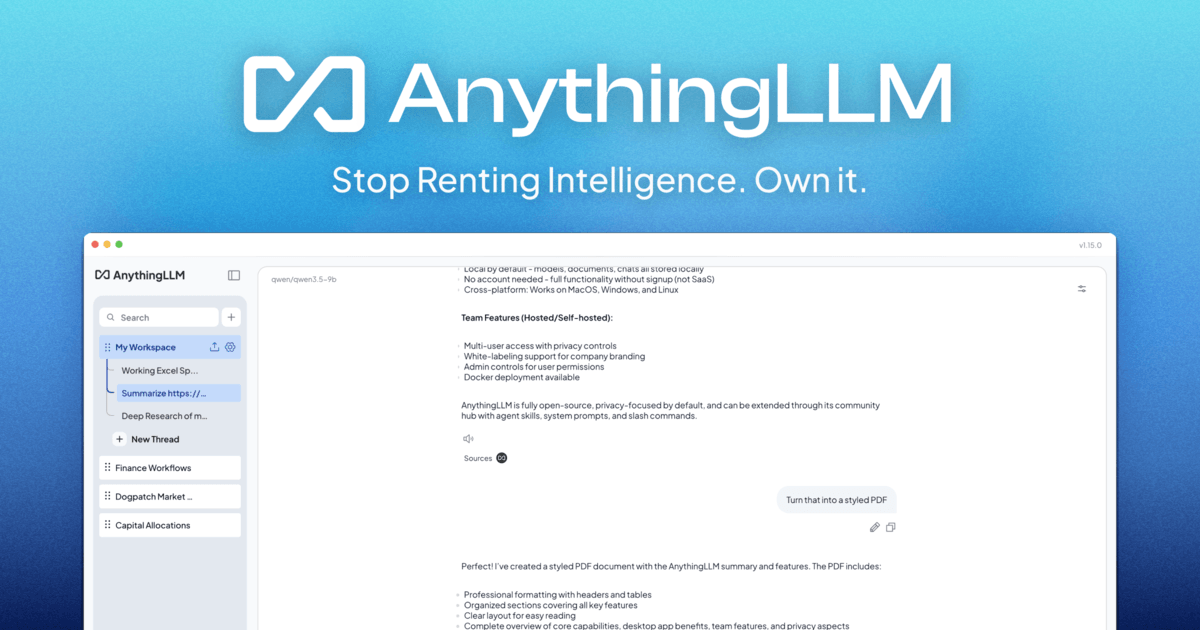
Platform preparation depends on the route: for the online route, register an account with Dify, FastGPT, or Coze and locate the knowledge-base and Q&A app entries; for the local route, download the AnythingLLM desktop app, which supports macOS, Windows, and Linux, and follow its three steps — download the app, pick a model, and start chatting with your documents — with no account or API key needed.
3. Step by Step: Import, Tune Retrieval, Launch
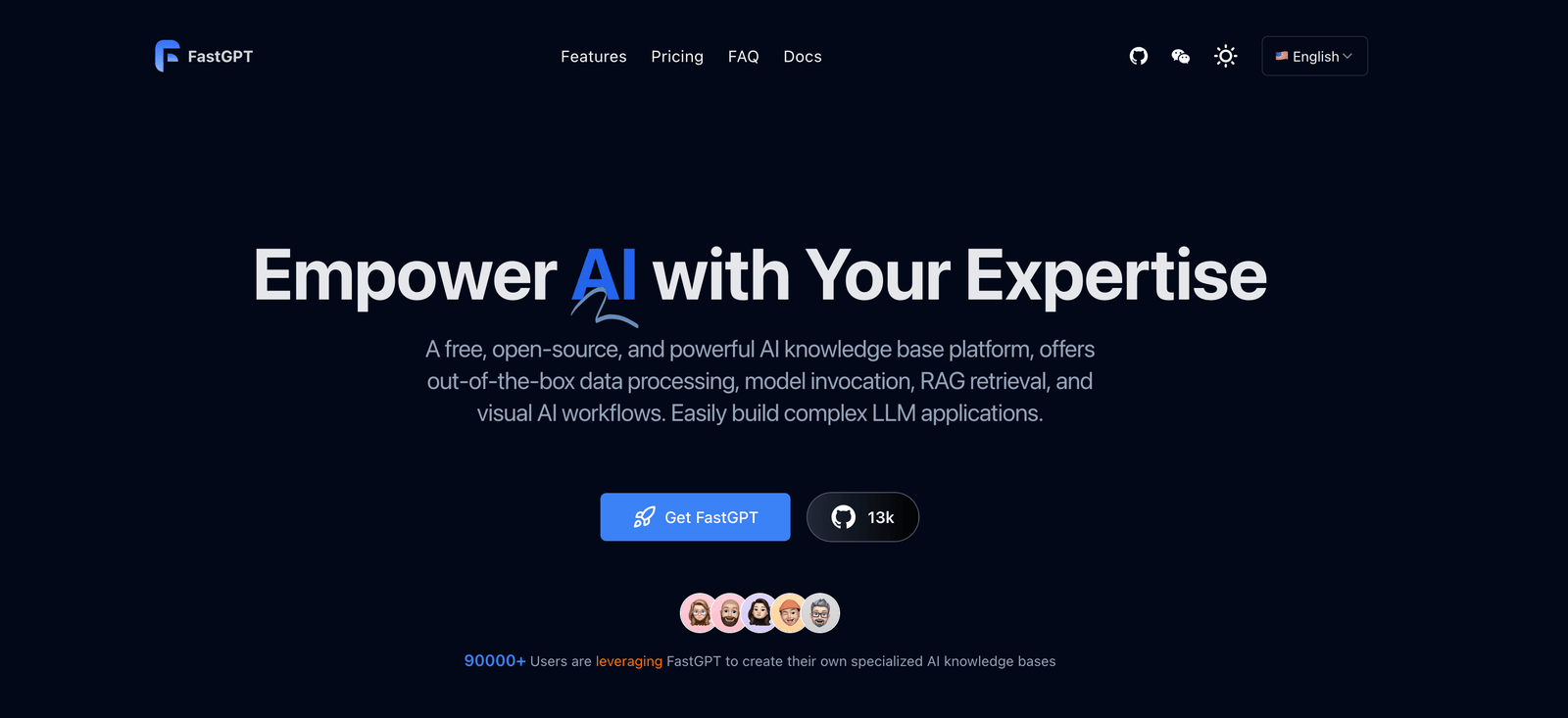
Import the documents to begin: FastGPT states on its official site that it supports importing Word, PDF, Excel, Markdown, and web links, plus syncing a whole website, with text preprocessing, vectorization, and Q&A splitting done automatically after import; Dify also provides knowledge-base import with visual orchestration — build one knowledge base per topic instead of pouring every document into a single base.
Then configure retrieval and answering: set how many passages each search returns and the relevance threshold, and require answers to cite the retrieved passages; Coze follows a zero-code building route — connect the knowledge base and publish the Q&A bot to the platforms you need. On the local route, create a workspace in AnythingLLM, import documents, pick a local model, and test by chatting directly.
Finally, run acceptance tests with real questions: prepare 20 to 30 frequent real questions, ask the assistant each one, and record how many it answers correctly, off-target, or not at all; for off-target answers, check whether the retrieved passages were right before adjusting splitting and thresholds. Once it passes, share the entry point with the team and keep a maintenance table in Notion for new documents, expired content, and weekly spot checks.
4. Common Pitfalls: Off-Target Answers, Fabricated Citations, Stale Documents
Off-target answers are usually a retrieval problem: passages split too fine or too coarse keep the relevant text from ranking. Adjust splitting size and the number of returned passages before considering a different model; fabricated citations often come from prompts that do not constrain sources — require answers to rely only on retrieved passages, and to say plainly when nothing was found.
Stale documents are the most overlooked pitfall: a policy changes, but the old version stays in the knowledge base. The fix is to tag every document with an owner and a review date, set monthly review reminders in the Notion maintenance table, and take expired documents offline before updating them.
5. Notes: Permissions, Pricing, and Verification
Set permissions up front: who may see all documents and who may only ask about public ones — keep sensitive documents in a separate base with separate authorization; FastGPT states on its official site that it supports SSO and RBAC permission management, which is the capability to configure for enterprise use. Pricing is stated as models only: Dify, FastGPT, Coze, and Notion follow freemium models, and local use of AnythingLLM is free — exact quotas and benefits are set by each official site.
The steps in this guide were verified against the official pages on 2026-11-25; if platform rules change, the official pages govern. One note: the Coze official site could not be fetched successfully that day, so this guide describes only general steps for Coze, with no interface button names; the Dify, FastGPT, AnythingLLM, and Notion homepages opened normally for verification that day.
Tools mentioned




Sources
This article is compiled from the public sources above and does not reproduce the originals in full; see the official sources for details.